Sport X20 | Bequeme In-Ear Sport Earbuds mit Ohrhaken

99,99€
Sport X20 | Bequeme In-Ear Sport Earbuds mit Ohrhaken

Sport X20 | Bequeme In-Ear Sport Earbuds mit Ohrhaken

  • Flexible Passform: Die Sport X20 sind mit verstellbaren Ohrbügeln ausgestattet, die um 4mm verlängert und bis 30° gedreht werden können, um einen bequemen und sichererHalt zu ermöglichen.
  • Fokussiert trainieren: Die Sport X20 verwandeln selbst das lauteste Fitnessstudio in deine persönliche Ruheoase. Mit manuellen Einstellungen und adaptivem ANCbleibst du fokussiert und ungestört auf dem Weg zu deinen Fitnesszielen.
  • Power Beat: Tauche ein in das intensive Bass-Erlebnisder soundcore BassUp-Technologie, angetrieben von kraftvollen 11mm dynamischen Treibern. Steigert deinen Sound und katapultiert deine Motivation in ungeahnte Höhen.
  • Dichtes Design: Die Sportkopfhörer mit ihrem einzigartigen Hohlraumdesign und soundcores exklusiver SweatGuard-Technologie bieten Schutz vor Wasser, SchweiB und Staub durch eine U-Boot inspierierte Abdichtung.
  • Marathon-Akkuleistung: Die Sport X20 Workout Kopfhörer glänzen mit 12 Stunden Akkulaufzeit pro Ladung, die mit dem Ladecase auf 48 Stunden steigt. Dank Schnellladefunktion bist du sofort Trainings bereit.

undefined

Versandinformationen
Der Standardversand liefert innerhalb von 3–7 Werktagen und ist kostenlos.
Expressversand
Bestelle bis 12 Uhr und erhalte dein Paket in 2 Werktagen.
9,99 €
Kennst du die Bedingungen für den Expressversand noch nicht?
Hier findest du Informationen zur Versandrichtlinie und zum verfügbaren Liefergebiet.
Mit einem Klick zum Großauftrag
Einfach, schnell und selbstbestimmt - dein Großhandelserlebnis.
E-mail: support@anker.com
Exklusive MitgliedervorteileJetzt werden
30 Tage Preisgarantie
Service und Leistungen
Schneller, kostenloser Versand
Problemlose Garantie
30-Tage-Geld-zurück-Garantie
Lebenslanger Kundensupport

Zahlungsmethode

Liefermethode

KV-DE

Stabil & sicher 

Sport X10 haben einzigartige Ohrbügel, die sich um bis zu 210° drehen lassen. Einfach flexibel drehen, um die perfekte Stelle für einen sicheren und bequemen Sitz zu finden, der sich auch bei intensiven Trainingseinheiten nicht bewegt.

Pumped-Up Bass

Sport X10 liefern eine doppelte Bassleistung. Das dynamische Akustiksystem ist so angepasst, dass es einen Sound mit 2× mehr Bass erzeugt. Außerdem analysiert unsere proprietäre BassUp-Technologie den Klang in Echtzeit und intensiviert den Bass bis zum Maximum.

Absolut Schweißfest

Die exklusive SweatGuard-Technologie von soundcore ist von der Struktur eines U-Boots inspiriert, um die Sport X10-Ohrhörer absolut schweißfest zu machen. Auch beim Schwitzen sind die internen Komponente der Earbuds effektiv geschützt.

Du bist der DJ

Verwende die In-App-Atemübungen in der soundcore App, um dich vor dem Training auf die richtige Atmung zu konzentrieren, passe das Klangprofil mit 22 EQ-Voreinstellungen an oder stelle deine bevorzugten Steuerungsmöglichkeiten ein.
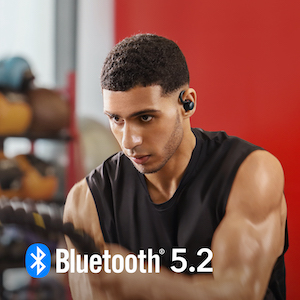
Stabile Konnektivität

Bluetooth 5.2 stellt sicher, dass deine Sport X10-Ohrhörer während des gesamten Trainings eine durchgehend stabile Verbindung mit deinem Gerät aufrechterhalten.

    Kristallklare Anrufqualität

Sport X10 verfügt über 6 Mikrofone und eine smarte Geräuschunterdrückungstechnologie, um deine Stimme klar aufzunehmen und Hintergrundgeräusche auszublenden. Wenn es ein windiger Tag ist, einfach die Windgeräuschunterdrückung in der Soundcore-App aktivieren, um die Anrufqualität zu verbessern.

Praktische Ladehülle

Einfach die Taste auf der Ladehülle drücken und die Ladehülle öffnet sich automatisch.

Einfache Steuerung

Beide Ohrhörer haben eine Taste, die einfach zu bedienen ist, auch während dem Workout. Verwende die Soundcore-App, um die Steuerung persönlich an deine Bedürfnisse anzupassen.

    On-the-Go Musik

Sport X10 sind klein und federleicht, um sicherzustellen, dass sie für lange Hörsitzungen komfortabel sind. Das schlanke Ladecase passt problemlos in deine Sporttasche, ohne viel Platz einzunehmen.

Spezifikationen

Design

In-Ear Ohrklammern

Aktive Geräuschunterdrückung

Fortschrittliches ANC

Anrufe

6 Mikrofone mit KI

Klangqualität

Bass Boost, 11mm Treiber

Bedienung

Tastenbedienung

Spielzeit

Standard: 12h/48h ANC: 7h/28h

Stabiler Halt

Verstellbare Ohrbügel

FAQ

1. Ziehe oder drehe den Ohrbügel in die Trageposition. 2. Setze den Körper des Kopfhörers in die Ohrmuschel ein (die größte Vertiefung auf der Oberfläche der Ohrmuschel) und wähle eine geeignete Größe der Earbuds, um einen dichten Verschluss zu erreichen. 3. Hebe und biege die Ohrbügel um deine Ohren, damit sie sicher und bequem sitzen. Für ein angenehmeres Tragegefühl kannst du die Bügel der verstellbaren und drehbaren Ohrbügel festhalten und auf eine angemessene Länge dehnen. 4. Probiere andere Größen von Earbuds aus, um sicherzustellen, dass die Größe, die du verwendest, gut passt und gut abschließt. Wenn einer deiner Kopfhörer nicht gut passt, probiere eine Kombination der Earbud aus, z. B. mittelgroß auf der linken und groß auf der rechten Seite. 5. Mache den Fit-Test in der soundcore-App, um zu überprüfen, ob du die Kopfhörer in der perfekten Position trägst.

1. Führe die Kopfhörer in den inneren Gehörgang ein und drehe sie vorsichtig, bis du die bequemste und sicherste Position gefunden hast. 2. Setze den Körper des Kopfhörers in die Ohrmuschel ein (die größte Vertiefung auf der Oberfläche der Ohrmuschel) und wähle eine geeignete Größe der Earbuds, um einen bequemen und dichten Abschluss zu gewährleisten. Um zu überprüfen, ob du die Kopfhörer in der perfekten Position trägst, mach den Fit-Test in der soundcore App. 3. Wenn du deine Kopfhörer über einen längeren Zeitraum getragen hast, solltest du eine Pause einlegen, damit sich deine Ohren entspannen können. Bitte beachte, dass die Ohrbügel nicht abnehmbar sind, aber herausgezogen werden können. Sie haben 4 Erweiterungsstufen und können um plus oder minus 30 Grad gedreht werden.

Die Ohrbügel sind nicht abnehmbar, können aber herausgezogen werden. Sie haben 4 Skalen zur Verlängerung und können um plus oder minus 30 Grad gedreht werden.

1. Probiere andere Größen von Earbuds aus, um sicherzustellen, dass die Größe, die du verwendest, gut passt und einen festen Sitz hat. Wenn sich ein Kopfhörer stabil anfühlt und der andere nicht, probiere eine Kombination von Earbuds aus, z. B. mittelgroß auf der linken und groß auf der rechten Seite. 2. Um zu überprüfen, ob du die Kopfhörer in der perfekten Position trägst, mach den Fit-Test in der soundcore-App. Wenn du die Kopfhörer nicht richtig trägst, ist die Geräuschunterdrückung möglicherweise nicht optimal. 3. Vergewissere dich, dass du die "Aktive Geräuschunterdrückung" aktiviert hast. Du kannst den Status in der soundcore App überprüfen. 4. Wenn du beide Kopfhörer zum ersten Mal verwendest, wähle "Adaptive Geräuschunterdrückung", damit die am besten geeigneten Parameter für die Geräuschunterdrückung entsprechend deiner Gehörgänge ausgewählt werden. 5. Teste die Kopfhörer in einer anderen Umgebung und mit einem anderen Bluetooth-Gerät, um zu sehen, ob das einen Unterschied macht. Hinweis: In einer lauten Umgebung und bei hoher Lautstärke hast du vielleicht das Gefühl, dass die Geräuschunterdrückung nicht so gut funktioniert.

Wähle manuell "Low Level Noise Cancellation" aus, um zu sehen, ob es einen Unterschied macht.

1. Öffne die soundcore App, klicke auf "Einstellungen" und schalte die "Windgeräuschunterdrückung" ein, um zu sehen, ob es überhaupt hilft. 2. Um ein gutes Nutzererlebnis zu gewährleisten, wird empfohlen, die Windgeräuschunterdrückung in der App nicht zu aktivieren, wenn du dich in einer Umgebung ohne Windgeräusche befindest.

1. Wie gut die Kopfhörer sitzen, kann sich auf den Geräuschpegel auswirken. Bitte befolge die folgenden Schritte, damit du deine Kopfhörer richtig und stabil trägst. - Achte auf das L/R-Logo auf der Rückseite der Kopfhörer, um sicherzustellen, dass die linken und rechten Ohrhörer auf der richtigen Seite getragen werden. Drehe den Ohrbügel und die Kopfhörer, während du sie trägst, um die bequemste Position zu finden. - Probiere andere Größen von Earbuds aus, um sicherzustellen, dass die Größe, die du verwendest, gut passt und gut abschließt. Wenn einer deiner Kopfhörer nicht gut passt, probiere bitte eine Kombination der Earbuds aus, z. B. mittelgroß auf der linken und groß auf der rechten Seite. 2. Öffne die App, wechsle in den "Manuellen Modus" und stelle "Min Noise Cancellation" ein oder wähle den entsprechenden "Ambient Sound"-Modus, um zu sehen, ob es überhaupt hilft. 3. Probiere diese Kopfhörer mit einem anderen Audioeingang und Bluetooth-Gerät (Telefon/Tablet/etc.) aus und schaue, ob das Problem weiterhin besteht.

1. Aktualisiere deine Firmware auf V1.55 oder höher. 2. Vergewissere dich, dass das Ladecase genügend Strom hat und setze deine Kopfhörer wie folgt zurück: - Lege die Kopfhörer in das Ladecase und lass das Etui offen. - Halte die Taste des Ladecase 10 Sekunden lang gedrückt, bis die LED-Leiste dreimal schnell weiß blinkt. Dies bestätigt, dass das Zurücksetzen erfolgreich war. 3. Teste deine Kopfhörer mit einem anderen Bluetooth-Gerät in einer anderen Umgebung, um zu sehen, ob das Problem weiterhin besteht.

We recommend turning off noise cancelling. Try using normal mode to see if it reduces the effect.

Open the soundcore app and turn on "Wind Noise Cancellation". The earbuds will automatically reduce the FF MIC gain when wind noise is detected to reduce its effect when listening to music or making calls.

1. Place the earbuds in the charging case and leave the case open. 2. Press and hold the charging case button for 10 seconds until the LED strip flashes white rapidly three times. This confirms that the reset is successful. It's important to note that when resetting the earbuds, they should be properly connected to the charging case. To ensure a successful reset, when returning the earbuds to the charging case, make sure that you carefully align the charging contactors between the earbuds and the charging case. If either earbud is successfully placed back into the case, the LED strip will light up white and then go off. If the LED indicator on the charging case does not light up, please check the following: 1. Ensure that the charging case and earbuds are firmly connected. 2. Confirm that both the charging case and the earbuds have sufficient power. 3. Clean the charging pins using a dry cloth to remove any dirt or debris that may hinder the charging process.

There are two methods. Method 1: Disconnect a single Bluetooth connection: 1. Turn off Bluetooth on the Bluetooth device itself. 2. Access the Bluetooth settings on one device and disconnect the earbuds from the list of available devices. Then, you can press and hold the charging case button for 3 seconds until the LED strip flashes white rapidly. This action will put the earbuds into the pairing state. Method 2: Disconnect the Bluetooth connection between the earbuds and both devices: 1. Place the earbuds into the charging case and ensure that the case remains open. Then, press and hold the charging case button for 3 seconds until the LED strip flashes white rapidly. This will put the earbuds into the pairing state.

1. Make sure the protective film below the earbud has been removed. 2. Reboot the Bluetooth device (e.g., phone or computer). Forget all the previous pairing records on your device and disable Bluetooth. 3. Fully charge your earbuds and reset the earbuds as per the steps below: - Place the earbuds in the charging case and leave the case open. - Press and hold the charging case button for 10 seconds until the LED strip flashes white rapidly three times. This confirms that the reset is successful. When resetting the earbuds, make sure the earbuds are well connected with the charging case, or it may cause the reset to fail. To ensure a successful reset, when returning the earbuds to the charging case, make sure that you carefully align the charging contactors between the earbuds and the charging case. If either earbud is successfully placed back into the case, the LED strip will light up white and then go off. 4. Turn on Bluetooth and search for soundcore Sport X20 and pair. 5. Please try with another device (phone/tablet/etc.) and see if the issue persists. If there is a pop-up window to confirm pairing for "soundcore Sport X20," please select "pair". If you accidentally select "cancel" you need to refresh (turn off and turn on) the Bluetooth of your device and pair the earbuds again.

Please note that this doesn't necessarily mean there is an issue with the earbuds but may have something to do with the connected device and environment. Bluetooth signals may be influenced by obstructions, such as walls, pillars, home appliances, Wi-Fi, and more. To ensure a stable connection, we recommend avoiding such obstructions. To fix this issue, please try the following: 1. Fully charge your earbuds and reset the earbuds as per the steps below: - Place the earbuds in the charging case and leave the case open. - Press and hold the charging case button for 10 seconds until the LED strip flashes white rapidly three times. This confirms that the reset is successful. It's important to note that when resetting the earbuds, they should be properly connected to the charging case. To ensure a successful reset, when returning the earbuds to the charging case, make sure that you carefully align the charging contactors between the earbuds and the charging case. If either earbud is successfully placed back into the case, the LED strip will light up white and then go off. 2. Turn off "Dual Connections" in the soundcore app. 3. Check the earbuds by listening to downloaded music/videos. 4. Check the earbuds with another Bluetooth device in a different environment to see if it works well.

For Windows systems: 1. If you only want to listen to the audio on the computer, select "soundcore Sport X20 Stereo" for the computer audio. If you need to adjust the volume, adjust both the software and the computer volume. 2. If you need to use a conference app on your computer such as Zoom/Microsoft Teams, please set the input and output of the software as stated below: - Microphone on the Conference Software: soundcore Sport X20 Hands-Free - Speaker on the Conference Software: soundcore Sport X20 Hands-Free If you need to adjust the volume, please do so through the software. If you cannot adjust the volume via the software, please select soundcore Sport X20 Hands-Free as the output on your computer and adjust the volume. 3. If you need to use an audio and video app on the computer and you cannot set the input and output via the app, please open the computer audio settings and choose the correct settings: Input: soundcore Sport X20 Hands-Free Output: soundcore Sport X20 Hands-Free For iOS systems: Set both input and output as soundcore Sport X20.

It's important to note that there may be a slight delay when using Bluetooth headphones, which is a common limitation of Bluetooth technology. In most cases, this delay is minimal and should not impact your experience. However, it's worth mentioning that the delay can be influenced by various factors such as the Bluetooth headphones themselves, the connected device, the audio source, the specific application being used, and even the network conditions. To fix this issue, please try the following: 1. "Forget" the earbuds in your device's Bluetooth history. Reboot your Bluetooth device such as your phone or computer. 2. Fully charge your earbuds and reset the earbuds as per the steps below: - Place the earbuds in the charging case and leave the case open. - Press and hold the charging case button for 10 seconds until the LED strip flashes white rapidly three times. This confirms that the reset is successful. 3. Test your earbuds with a different Bluetooth device, app, and downloaded music/videos to see if the problem still persists. 4. Turn off "Dual Connection". Make sure the Bluetooth device and earbuds are within Bluetooth range, and there is no signal interference between them.

When already connected to one device, click the settings in the top right corner of the app > More Settings > Dual Connections.

It takes around 40 minutes to fully charge the earbuds (Room temperature 25 +/- 3 degrees Celsius laboratory data).

It takes around 3 hours to fully charge the charging case via a wall charger.

Normally, the earbuds can be used for around 7 hours in ANC mode and 11.5 hours in Normal mode at 50% volume, but playtime may vary slightly based on the music content and volume. If you use the earbuds to make/receive calls, playtime will be shorter as it consumes more power than playing music. Please note that a difference of less than 1 hour between the left and right earbud is considered normal. If the difference is beyond 1 hour, please try the following: 1. Use a dry cloth/cotton swab with rubbing alcohol to clean the charging pins in the charging case and on the earbuds to ensure a better connection. Ensure the ear tips are not blocking the charging connectors. 2. Fully charge the earbuds. 3. Test the battery when playing music. ANC is turned on by default. If you want to test the playtime in Normal mode, switch to Normal mode first.

Normal: 12 hours of playtime for earbuds and 48 hours for the charging case. ANC: 7 hours of playtime for earbuds and 28 hours for the charging case. Transparency: 7 hours of playtime for earbuds. Calls: 6 hours of playtime for earbuds. Note: Battery playtime is obtained from testing in the Anker laboratory using the earbuds' default settings, in normal mode, and at 50% volume. The actual playtime may vary by volume, audio source, environmental interference, usage, etc.

1. Ensure that the ear tips are not blocking the charging pins on the earbuds and in the charging case. Make sure that the earbuds are connected to the charging case. If you place the left and right earbuds in the charging case and the LED indicators on the charging case flash white, it means they are connected properly. 2. Use a dry cloth or cotton swab with a bit of rubbing alcohol to clean the charging pins in the charging case and on the earbuds to ensure a better connection. 3. Charge your charging case with a different charging cable and wall charger, and make sure the charging case has enough power. If your earbuds haven't been used for a long time, please make sure you charge them for at least 2 hours to see if it helps at all.

SBC and AAC.

1. Try different sizes of ear tips and make sure you're wearing the earbuds in the correct position so that they create a tight seal. If one earbud feels stable and the other does not, try a combination of ear tips such as medium in the left and large in the right. This will enhance the sound quality. 2. Try different types of music and make sure the input audio source has no distortion or noise. 3. Try different EQ modes in the soundcore app and customize the EQ to your preference.

If the audio source doesn't have much bass, the earbuds will have poor bass. To confirm the problem, please try the following: 1. Make sure the charging case has enough power and reset the earbuds as per the steps below: - Place the earbuds in the charging case and leave the case open. - Press and hold the charging case button for 10 seconds until the LED strip flashes white rapidly three times. This confirms that the reset is successful. 2. Try different types of music and turn up the volume on the connected device to see if it helps at all. 3. Find the most suitable ear tips for your ears, then check the bass to see if it has improved at all. If the earbuds are not worn properly in your ears, you may not experience the best bass performance. If one earbud feels stable and the other does not, try a combination of ear tips such as medium in the left and large in the right. 4. Try selecting "Sound Effect" in the soundcore app and choose the "Bass Booster" or "Bass Reducer" EQ from the 22 available EQ options. 5. Try selecting the "Custom EQ" option in the app to customize the EQ curve style. 6. Try using your earbuds with a different Bluetooth device to see if there is a difference.

1. Make sure the charging case has enough power and reset the earbuds as per the steps below: - Place the earbuds in the charging case and leave the case open. - Press and hold the charging case button for 10 seconds until the LED strip flashes white rapidly three times. This confirms that the reset is successful. 2. Clear all the pairing records on your Mac computer and re-pair your earbuds. Turn the volume down one notch on your Mac computer. Then turn up the volume of both your Mac computer and earbuds with the music/video set to maximum volume. 3. Use a Q-tip with a bit of rubbing alcohol to gently clean the metal mesh filter under the rubber ear tips.

1. Make sure the charging case has enough power and reset the earbuds as per the steps below: - Place the earbuds in the charging case and leave the case open. - Press and hold the charging case button for 10 seconds until the LED strip flashes white rapidly three times. This confirms that the reset is successful. 2. Clear all the pairing records on your Windows computer and re-pair your earbuds. Make sure you choose the right mode. For audio/video, choose Stereo, and for mic choose Hands-Free. 3. Re-pair your earbuds and turn up the volume of both your computer and earbuds with the music/video to the maximum. 4. Use a Q-tip with a bit of rubbing alcohol to gently clean the metal mesh filter under the rubber ear tips.

1. Turn on "Absolute Volume" in the developer options or select "Sync Bluetooth device volume with phone" in the Bluetooth settings. 2. Make sure the charging case has enough power and reset the earbuds as per the steps below: - Place the earbuds in the charging case and leave the case open. - Press and hold the charging case button for 10 seconds until the LED strip flashes white rapidly three times. This confirms that the reset is successful. 3. Re-pair your earbuds and turn up the volume of both your phone and earbuds with the music/video to the maximum. 4. Use a Q-tip with a bit of rubbing alcohol to gently clean the metal mesh filter under the rubber ear tips.

1. Remove the maximum volume limit on your phone. Go to Settings > Sounds & Haptics > Headphone Safety and turn off Reduce Loud Sounds. 2. Make sure the charging case has enough power and reset the earbuds as per the steps below: - Place the earbuds in the charging case and leave the case open. - Press and hold the charging case button for 10 seconds until the LED strip flashes white rapidly three times. This confirms that the reset is successful. 3. Re-pair your earbuds and turn up the volume of both your phone and earbuds with the music/video to the maximum. 4. Use a Q-tip with a bit of rubbing alcohol to gently clean the metal mesh filter under the rubber ear tips.

1. Try different sizes of ear tips and make sure you're wearing the earbuds in the correct position so that they create a tight seal. If one earbud feels stable and the other does not, try a combination of ear tips such as medium in the left and large in the right. 2. Make sure "Wind Noise Reduction" mode and "Adaptive Environmental" mode are not enabled, as these may cause sound changes due to environmental variations. 3. It is recommended to turn off the "Wind Noise Reduction" mode in normal daily environments.

For Windows systems: 1. If you only want to listen to the audio on the computer, select "soundcore Sport X20 Stereo" for the computer audio. If you need to adjust the volume, adjust both the software and the computer volume. 2. If you need to use a conference app on your computer such as Zoom/Microsoft Teams, please set the input and output of the software as stated below: - Microphone on the Conference Software: soundcore Sport X20 Hands-Free - Speaker on the Conference Software: soundcore Sport X20 Hands-Free If you need to adjust the volume, please do so on via the software. If you cannot adjust the volume through the software, please select soundcore Sport X20 Hands-Free as output on your computer and adjust the volume. 3. If you need to use an audio and video app on the computer and you cannot set the input and output on the app, please open the computer audio settings and choose the correct settings: Input: soundcore Sport X20 Hands-Free Output: soundcore Sport X20 Hands-Free For iOS systems: Set both input and output as soundcore Sport X20.

1. Make sure you have raised both the volume of the earbuds and the connected device to the maximum. 2. Change the ear tips to ones that fit more snugly in your ears and make sure you're wearing the earbuds in the correct position to create a tight seal. If the earbuds are not worn properly in your ears, you may not obtain the correct call performance. 3. Try switching to the phone mic and make a call to see if the problem still persists. 4. Please test these earbuds in a quieter environment for the call to see if the problem still persists.

1. If you are only using one earbud, ensure that the other earbud is in the charging case. 2. Replace the ear tips with ones that fit more snugly in your ears and ensure that you are wearing the earbuds in the correct position to create a tight seal. If the earbuds are not worn properly in your ears, you may not achieve the correct call performance. 3. Ensure that the audio output device selected is "soundcore Sport X20" on the connected device and turn up the volume on your device. 4. If you make a call through an app, try using your phone to make a call instead to see if the problem persists. 5. Try testing your earbuds with a different Bluetooth device in a different environment to see if there is any difference.

1. Replace the earbud tips with ones that fit more snugly in your ears and ensure that you are wearing the earbuds in the correct position to create a tight seal. If the earbuds are not worn properly in your ears, you may not achieve the correct call performance. 2. Fully charge your earbuds and reset the earbuds as per the steps below: - Place the earbuds in the charging case and leave the case open. - Press and hold the charging case button for 10 seconds until the charging case button LED strip flashes white rapidly three times. This confirms that the reset is successful. 3. Ensure that the audio output device selected is "soundcore Sport X20" on the connected device and turn up the volume on your device. 4. If you make a call through an app, please try using your phone to make a call instead to see if the problem persists. 5. Try testing your earbuds with a different Bluetooth device in a different environment to see if there is any difference.

Customize the button function in the app: Open the app > select "Controls" > choose the corresponding button operation mode > Voice Assistant. Please note that single-press operation cannot be set to activate the voice assistant.

1. Pair your earbuds with your phone. 2. Turn down the volume when making a call. 3. Restart Siri, and the volume should be lower.

1. Make sure your earbuds have enough power, and try downloading in an environment with a good network connection. 2. If installation fails, try uninstalling and reinstalling the soundcore app, and then restart your phone before trying again. 3. Try with a different phone. If you keep getting an update failure message, provide us with the phone model and the SN on the app for further investigation.

1. Download the latest version of the soundcore app from your App Store (if you already have the soundcore app, it is recommended to uninstall it and then download it again, overwriting installation is not recommended). 2. Pair your earbuds with your phone. Currently, the soundcore app does not support computers. 3. Open the app, click "Add Device" on the left page, the app will automatically connect to soundcore Sport X20 (the first time you enter the app, you must agree to enable location permissions). 4. If the connection fails, click Set up Manually > Other Series > soundcore Sport X20 to check whether it can be added manually (if you can't find the corresponding model on this page, you can take a screenshot). 5. Go into the region of the system, switch to English (United States), and switch the system language to English (United States). 6. If it still fails, please uninstall and reinstall the app and log in again. If you're still unable to connect after following the provided steps, please send the model of your mobile phone, the app version, and screenshots of the issue to our customer service team. First connection successful, subsequent connections unsuccessful: 1. Check if it's in Dual-Connections mode, if the user has connected to the app on phone A, it will not be possible to connect to the app on phone B. You can try exiting the app on phone A. 2. Restart the device, or try using a different device.

Log in to the soundcore app, click "soundcore Effects" > "HearID Sound". After the test, the results will be automatically saved and used.

1. This feature can only be used when Sport X20 is connected to your phone. 2. Connect Sport X20 to the soundcore app. Select "Breathe", then choose the mode you want to use and "Press to Start". 3. If you want to end the training, press the center of the breath circle. 4. If you want to set a timer and choose background music, go to "Settings" in the upper right corner to create a new custom mode. You can customize the inhale and exhale duration and choose background music.

For a double press, ensure the interval between two presses is within 400ms. For a single press, ensure the interval between two presses is more than 1 second.

With the Charging Case Once connected successfully for first-time use, the earbuds will automatically reconnect to your device every time you open the charging case, as long as you haven't deleted the pairing history from your device. To power off, return the earbuds to the charging case and close it. - When returning the earbuds to the charging case, make sure that you carefully align the charging contactors between the earbuds and the charging case. If either earbud is successfully back into the case, the LED strip will light up in white and then go off. Without the Charging Case: To power on a single earbud, press and hold the multi-function button of the corresponding earbud for 3 seconds. To power off a single earbud, press and hold the multi-function button of the corresponding earbud for 10 seconds.

Yes, placing one earbud in the charging case and closing the case allows the other one to be used independently.

Single press the L or R button to answer a call, and long press either the left or right earbud button for 2 seconds to hang up the call.

By default, double pressing the right earbud button will play the next track, and double pressing the left earbud button will play the previous track. Please note that the button function can be customized via the soundcore app.

Battery Level Indication: 1) Charging case low battery 0-10%: When the case is opened, the central LED turns red and stay on. 2) Charging case battery 10%-30%: When the case is opened, the middle LED is white and turns on once every 2 seconds. 3) Charging case battery 30%-60%: When the case is opened, the middle three LED's are white and turn on once every 2 seconds. 4) Charging case battery 60%-99%: When the case is opened, the entire five LED's are white and turn on once every 2 seconds. 5) Fully charged: The entire five LED's are white and turn on for 10 seconds before turning off. Note: The LED in the middle corresponds to about 20% of the length of the external light strip. The three LEDs in the middle correspond to about 60% of the length of the external light strip. The five LEDs are all on, corresponding to the length of the external light strip being fully lit. Fully charged: The entire white light stays on for 10 seconds before turning off. Earbuds Pairing Status Indication: The charging case's LED indicator flashes white rapidly, indicating that the earbuds are in pairing mode and ready to connect to a device. The LED strip (built-in 5 white lights) stays on for 2 seconds and then turns off indicating successful pairing. Earbuds Placement Indication: The LED strip (built-in 5 white lights) stays on for 2 seconds and then turns off.

Long press the L or R button for 2 seconds to switch modes, in the following order: ANC -> Transparency. The button operations can be customized in the soundcore app.

1. Don't leave the earbuds unused for extended periods. It is recommended to use them at least once a month. A completely discharged battery can lead to over-discharging, which affects the battery life. 2. Try not to use the earbuds until the remaining battery is only 20% or wait until low battery shutdown before charging. This also greatly impacts the battery life. 3. The charging case should not be in a state of red light or no power for a long time. When storing, it should be in a state indicated by a white light. 4. Clean the earbuds and the charging pins of the charging case promptly after use, as well as the speaker outlet and ear caps (It is recommended to clean the charging pins at least once or twice a month using a cotton swab or cloth dipped in rubbing alcohol). 5. Store them on a dry desktop. If they accidentally come into contact with liquid, use a hairdryer on the cold setting to dry them.

Benutzerhandbuch-Downloads