
Master the Screen Share: How to Connect Laptop to TV
Master the Screen Share: How to Connect Laptop to TV
You would like to view a film, deliver a presentation or view images on a larger display. How to connect laptop to TV is a step that can result in a change in experience. Make your screen bigger and clearer by using a few simple tools and the right setup.
This guide walks you through all the popular methods to connect laptop to TV, from HDMI Hub for TV cables to wireless screen mirroring, ensuring smooth and stable performance every time.
Why Connecting Your Laptop to a TV Matters
Knowing how to connect laptop to television is not only for fun. It helps you do many things at once, work better, and enjoy smoother streaming or gaming. This part explains the main benefits, the tools you need, and the key devices that can help you get the best results.
Key Highlights
- Broaden your display for multitasking or creative work
- Enjoy smoother streaming and gaming
- Present slides or videos seamlessly on large screens
- Discover useful accessories like HDMI Hub for TV to simplify the setup
In the following sections, we’ll cover how to make these connections step by step, from wired HDMI links to advanced wireless streaming options, and introduce you to devices like Anker 565 that can make the process even easier.
Methods to Connect Laptop to TV
There are several ways to connect laptop to TV, each suited for different needs. Some prefer a stable, high-definition HDMI connection, while others enjoy the convenience of wireless pairing. Below, we summarise the major methods that we’ll explore in detail later.
Overview of Connection Methods
- HDMI connection for high-definition stability
- Wireless display for flexible setups
- USB-C hub solutions for modern laptops
- Smart TV connectivity for cable-free streaming
Each of these approaches can offer clear video, strong performance, and ease of use when done correctly. Let’s go through each one in more detail.
1. Using HDMI Cable: The Most Reliable Connection
The best and simplest way to connect laptop to TV is with an HDMI cable. Video and sound are sent in one cable by HDMI and the quality is clear and stable.
Steps:
- Locate the HDMI port on your laptop and TV.
- Connect one terminal of the HDMI lead to your laptop and the other to the television.
- Use the TV remote to select the correct HDMI input.
- Change the display settings on your laptop — press Windows + P or use Display settings.
Why use HDMI?
- Delivers up to 4K resolution
- Carries both sound and image
- Stable and fast with minimal lag
If your laptop lacks a dedicated HDMI port, a versatile HDMI Hub for TV like Anker 565 can help bridge that gap.
2. Wireless Display: Connect Without Cables
How to connect laptop to TV without cables is an easily achievable task. Screen mirroring is a feature of modern smart TVs that works with Miracast, Chromecast and AirPlay.
Steps:
- Ensure both devices are connected to the same wireless network.
- Select “Connect to a wireless display” in your laptop’s display settings.
- Choose your TV from the list.
- Verify the connection on your TV.
Advantages:
- No cables or adapters required
- Great for online videos, browsing or light gaming
- Freedom to position your laptop anywhere
A strong Wi-Fi connection is required for smooth wireless performance.
3. USB-C Hub: Expand Your Laptop’s Connectivity
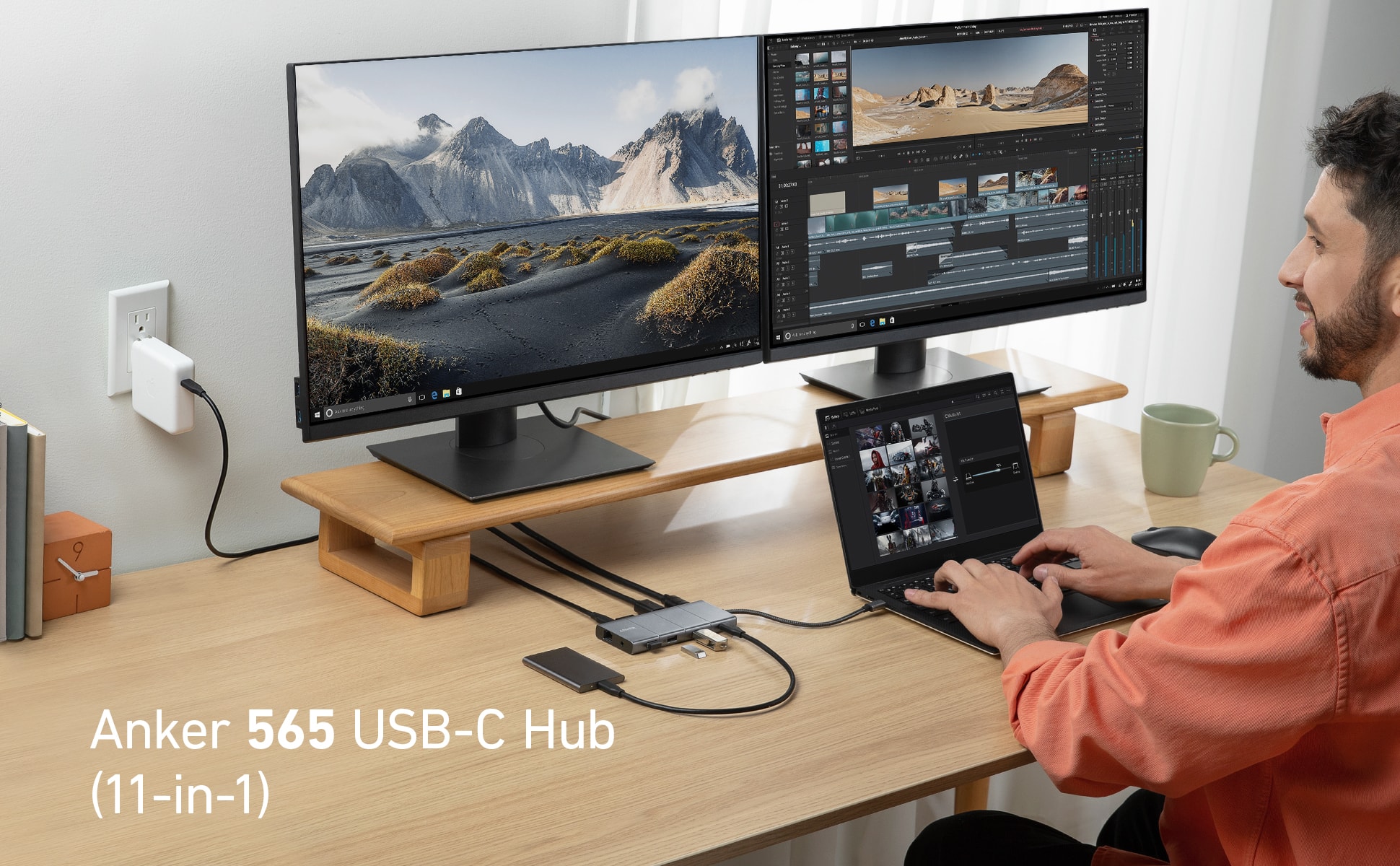
A multi-function hub like Anker 565 is the perfect solution for laptops with limited ports. This 11-in-1 USB-C hub gives you more options and lets you connect to multiple displays quickly.
Why choose Anker 565:
- Massive Expansion: Converts a single USB-C port into 11 ports including HDMI, DisplayPort, Ethernet, USB-C, USB-A, AUX, and microSD/SD slots.
- High-Speed Data Transfer: 10 Gbps USB-C and USB-A ports enable rapid file movement.
- Multi-Monitor Display: Supports two external screens via 4K HDMI and DisplayPort.
- Pass-Through Charging: Provides up to 85W while keeping all ports functional.
- Convenience: Comes with an 18-month warranty and customer support.
At just $149.95, Anker 565 is ideal for those who want to connect a laptop to a TV while using other devices at the same time. You can charge your laptop while streaming content on the big screen, making it perfect for work or entertainment.
4. Smart TV Connectivity: Use Built-in Features
Most modern smart TVs have built-in ways to connect your laptop using:
- Chromecast: Stream from Chrome or supported apps.
- AirPlay: Mirror your screen from macOS.
- Miracast: Use “Project” or “Cast” on Windows.
Tips:
- Keep both devices updated.
- Ensure strong Wi-Fi.
- Close extra apps to minimise lag.

Troubleshooting Common Connection Issues
Even with the best setup, issues may arise when you try to connect laptop to TV. Fortunately, most problems can be fixed quickly.
1. No Signal Detected
- Check the correct HDMI input on your TV.
- Ensure the cable or hub is properly connected.
- Set your laptop display output to “Duplicate” or “Extend.”
2. Audio Not Playing on TV
- Right-click the sound icon on your laptop.
- Select “Playback Devices.”
- Choose your TV as the default speaker.
3. Lag or Delay
- Lower display resolution.
- Close background applications.
- Use a wired connection for better stability.
A hub like Anker 565 ensures strong connections and reduces lag by supporting fast data transfers.
Optimising Your Laptop-to-TV Experience
Before you begin, you need to understand how to connect laptop to TV. Enhancing display and audio settings can significantly improve your experience.
1. Adjust Display Settings
- Select the right picture quality (1080p or 4K) for your TV.
- Use “Extend” for multitasking or “Duplicate” for presentations.
2. Enhance Audio Quality
- Use your TV speakers or external speakers.
- Balance volume on both laptop and TV.
3. Manage Cables and Devices
- Use cable organisers for a tidy setup.
- Position hubs like Anker 565 close to your laptop for easy access.

Final Thoughts
Learning how to connect laptop to TV opens the door to many possibilities. HDMI cables offer the best quality, wireless mirroring gives flexibility, and USB-C hubs like Anker 565 provide powerful multi-screen connectivity. The key is choosing the method that suits your needs.
Just follow the steps and use the right tools to ensure a smooth and reliable connection—it's easy.


Be the First to Know
Save Up to 30% Off
Already signed up?
